You have probably heard that multi-factor authentication is one of the most important things you can do to protect your business. You may have been meaning to set it up for a while. And if you are being honest, the reason you have not done it yet is not that you think it is a bad idea. It is that no one has ever shown you exactly how to do it in plain terms.
This post does that.
By the time you finish reading, you will have everything you need to set up MFA on your most critical business accounts today. No technical background required. No IT person needed. Just your phone, your computer, and about 10 minutes.
What MFA Actually Is
Multi-factor authentication is a second lock on your accounts. Your password is the first lock. MFA adds a second step that requires you to verify your identity using something else, typically your phone, before access is granted.
Here is why this matters in practice. If a criminal gets your password through a phishing email or a data breach on another site where you used the same password, they still cannot get into your account. Without your phone, they cannot complete the second step. The door stays closed.
Microsoft reports that MFA blocks more than 99 percent of automated account compromise attacks. That is not a modest improvement over a password alone. That is a complete transformation of your risk profile for one of the most common attack types targeting small businesses today.
What You Need Before You Start
You need two things and nothing else.
Your smartphone, either an iPhone or Android device, and access to the email account or accounts you want to protect. That is it. The process takes approximately 10 minutes per account.
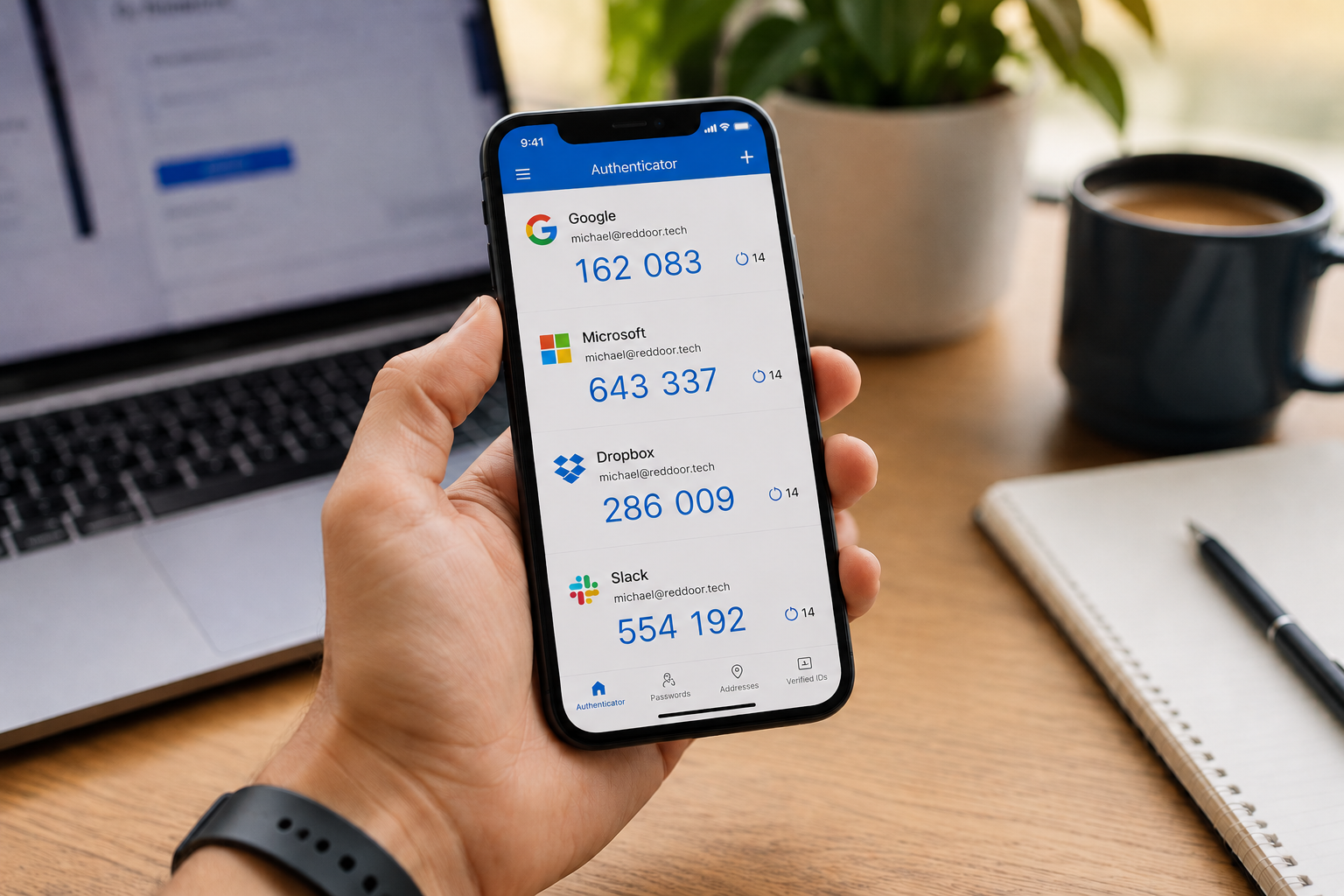
The first thing to do is download an authenticator app. This app generates a secure, time-sensitive code that serves as your second verification step each time you log in. It works even without a cellular connection, which makes it more reliable and more secure than receiving codes by text message.
Recommended authenticator apps:
- Microsoft Authenticator is the best choice for businesses using Microsoft 365. Search "Microsoft Authenticator" in the App Store or Google Play and install it. It is free.
- Google Authenticator works well for Google Workspace users and for any other accounts you want to protect. Search "Google Authenticator" in the App Store or Google Play and install it. It is also free.
- Authy is a strong alternative that stores your codes with a secure backup, which is helpful if you ever lose or replace your phone. Search "Authy" in either app store.
Download one of these apps now before moving to the next step.
Step-by-Step: Microsoft 365 Business Email
If your business uses Microsoft 365 for email, follow these steps.
For individual users setting up MFA on their own account
Open a web browser and go to mysignins.microsoft.com. Sign in with your Microsoft 365 email and password. Once you are logged in, look for the Security Info section and select Add sign-in method. Choose Authenticator app from the list. Microsoft will display a QR code on your screen. Open the Microsoft Authenticator app on your phone, tap the plus sign to add an account, select Work or school account, and then tap Scan a QR code. Point your phone's camera at the QR code on your computer screen. Your account will appear in the app within a few seconds. Microsoft will then send a test notification to your phone. Approve it to confirm the setup is working. From this point forward, every time you sign into your Microsoft account, you will enter your password and then approve a notification on your phone.
For business owners who are the administrator
Open a web browser and go to admin.microsoft.com. Sign in with your administrator account. On the left navigation panel, go to Users and then Active users. At the top of the page, select Multi-factor authentication. A new page will open showing all the users in your organization. Select the users you want to enable MFA for, or select all users, and then click Enable. Confirm your selection when prompted. Each user will be guided through the setup process the next time they sign in.
Enabling MFA for your entire organization through the admin center takes about five minutes and immediately protects every account in your business.
Step-by-Step: Google Workspace Business Email
If your business uses Google Workspace for email, follow these steps.
For individual users setting up MFA on their own account
Open a web browser and go to myaccount.google.com. Sign in with your Google Workspace email and password. Select Security from the left navigation menu. Scroll down to the section labeled How you sign in to Google and select 2-Step Verification. Click Get started. Google will walk you through the setup process. When given the option to choose your second step, select Authenticator app rather than text message. Google will display a QR code on your screen. Open the Google Authenticator app on your phone, tap the plus sign, and select Scan a QR code. Point your phone's camera at the code on your screen. Your Google account will appear in the app. Enter the six-digit code currently showing in the app back into the Google setup page to confirm everything is connected. Click Turn On. MFA is now active on your account.
For business owners who are the administrator
Open a web browser and go to admin.google.com. Sign in with your administrator account. Select Security from the left navigation menu, then select Authentication, and then select 2-step verification. Make sure the setting Allow users to turn on 2-step verification is enabled. To require it for everyone in your organization rather than simply allowing it, select Enforcement and set the enforcement to On for all users in your organization. Set a grace period of one to two weeks so your team has time to complete their individual setup before being required to use it. Save your settings.
After you apply enforcement, each team member will be prompted to set up their MFA method the next time they sign in. Google provides clear instructions at each step, so your team can complete it independently without any technical help from you.
Test It Before You Move On
Before setting up any additional accounts, test that MFA is working correctly on the account you just configured.
Sign out of your email account completely. Then sign back in using your email and password as normal. After entering your password, your phone should either display a notification to approve or your authenticator app should be showing a six-digit code for you to enter. Complete whichever second step applies to your setup. If you are successfully signed in after completing both steps, your MFA is working correctly.
If anything does not work as expected, revisit the setup steps above. The most common issue is that the QR code was not scanned correctly, which is solved by removing the account from your authenticator app and repeating the scan.
The Next Accounts to Protect
Now that your business email is secured, extend MFA to these accounts in order of priority.
- Business banking is your highest priority after email. Go to your bank's website, navigate to your account security settings, and look for two-step verification or multi-factor authentication. Most major banks offer this and the setup process follows a similar pattern to what you just completed.
- Your accounting software, whether that is QuickBooks, Xero, FreshBooks, or another platform, should be next. Log into your account, go to your account or security settings, and enable two-factor authentication.
- Cloud storage platforms including Google Drive, Dropbox, OneDrive, and any other service where your business files are stored should be configured next. Each platform has MFA available in the account security settings.
- Any platform where client data is stored or where your clients can log in to access their information should be secured as a high priority as well. This includes your CRM, your project management tools, and any client portals.
Work through this list over the course of a week. One account per day is a manageable pace, and by the end of the week your most critical business systems will all be significantly more secure than they were before.
Getting Your Team Set Up
Once your own accounts are protected, your team's accounts need the same treatment.
Send a short email to your entire team explaining what MFA is, why you are enabling it, and what they should expect. Let them know they will be prompted to set it up on their next login and that it will take about five minutes. Reassure them that the process is straightforward and that you are available if they have questions.
If you enabled enforcement through your Microsoft or Google admin settings, your team will be guided through the process automatically. If you have not enabled enforcement yet, follow up individually with any team members who have not completed their setup within a few days. MFA is only as strong as its adoption across your organization. One unprotected account is a potential entry point for your entire operation.
One Step, Not the Whole Staircase
Setting up MFA is one of eight security layers every small business needs. It is the right place to start because it has the highest impact relative to the time it takes to implement. But it is one step, not the entire solution.
Email security filtering, endpoint protection, data backups, access control, network monitoring, employee training, and an incident response plan all work together to create a complete security posture. MFA closes the credential compromise gap. The other seven layers close the gaps that MFA cannot address on its own.
If you want to know where you stand across all eight layers right now, our free Business Security Assessment gives you that picture in less than 10 minutes. It covers every layer of your current security posture and tells you plainly what is working, what is missing, and what the priority next steps are for your specific business.
You have already taken one step today. Here is what the rest of the picture looks like.
Not sure where your business actually stands?
Take our free Business Security Assessment. In under 10 minutes, you will know exactly where your gaps are and what it would take to close them.
Get My Free Security Assessment